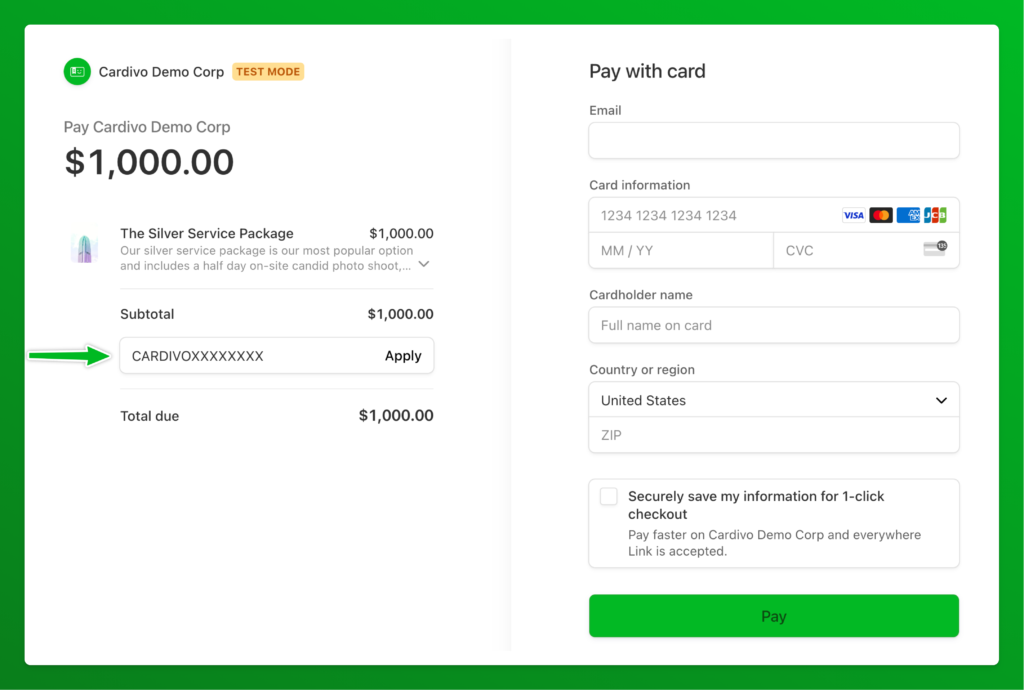
Yes. Switch Stripe ON in the Integrations tab of your Cardivo settings and turn ON Allow promotion codes on your Stripe payment link settings to show the promotion code field in your Stripe checkout pages. To enable this in Stripe, log in to your Stripe dashboard, then:
- Click Payments on the left-hand sidebar, then select Payment links.
- Choose the payment link you want to update and click Edit.
- Locate and check the option to Allow promotion codes.
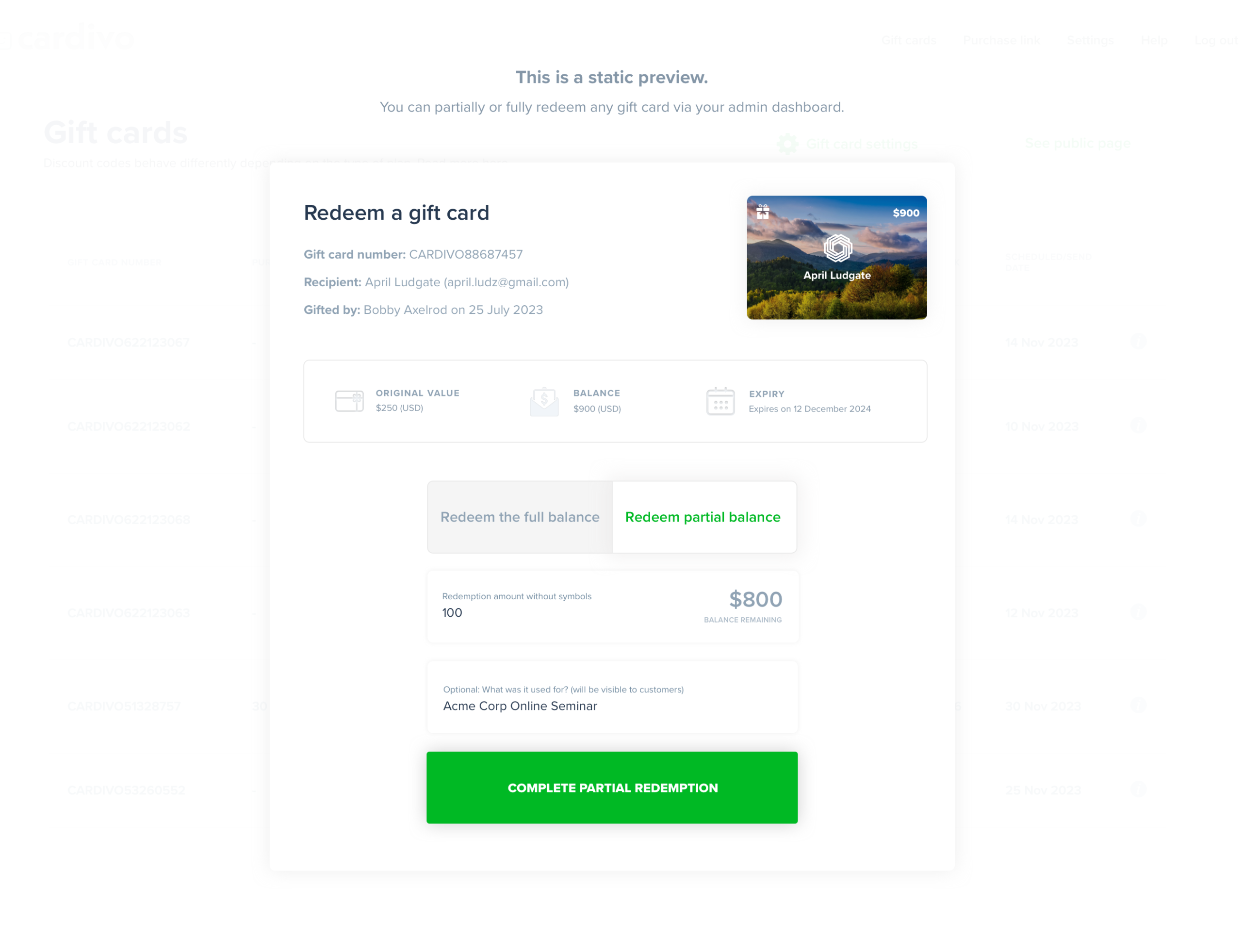
At checkout, customers click Add promotion code and enter their Cardivo gift card number. Balances update automatically in Cardivo and are always in sync, even when using multiple redemption channels.
Was this answer helpful ?
Yes
/
No